


Web video on the TV, with the phone left out of it
VidBeam: Cast Web Videos to TV
Some video only exists on a web page. A match, a conference stream, a lecture recording — no app, no cast button, just a player in a page. The usual way to get that onto a television is to mirror the phone’s screen, which sends a picture of the phone to the TV and keeps the phone busy for as long as you watch.
VidBeam is a browser that takes the other route: it finds the video stream behind the page and hands that stream to the TV, which then fetches it itself. How to watch a web video on your TV without screen mirroring explains the difference, and how to cast a web video to Chromecast from an iPhone covers Google Cast televisions.
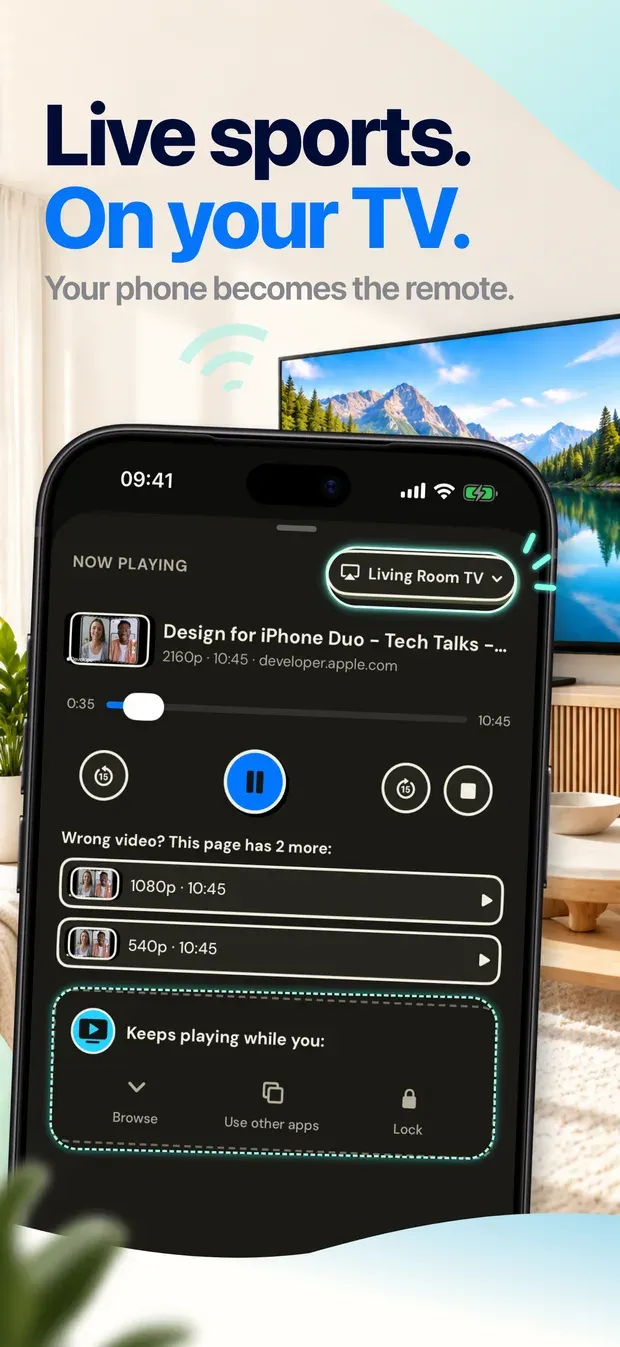
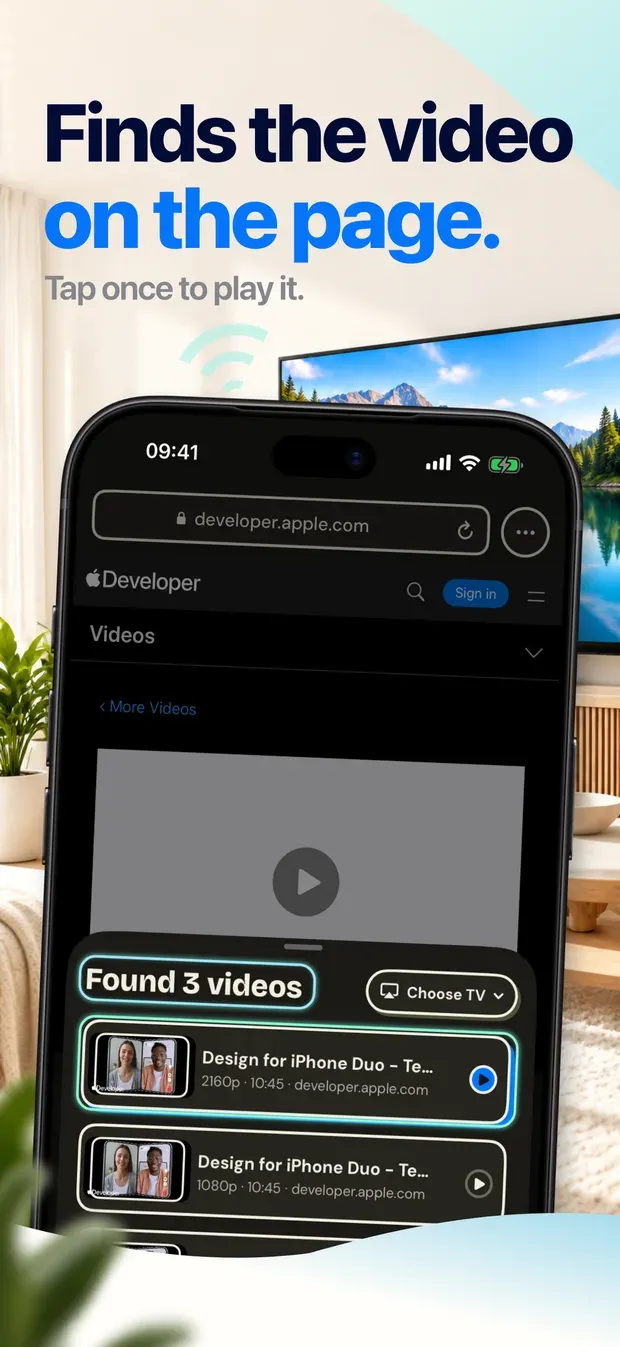
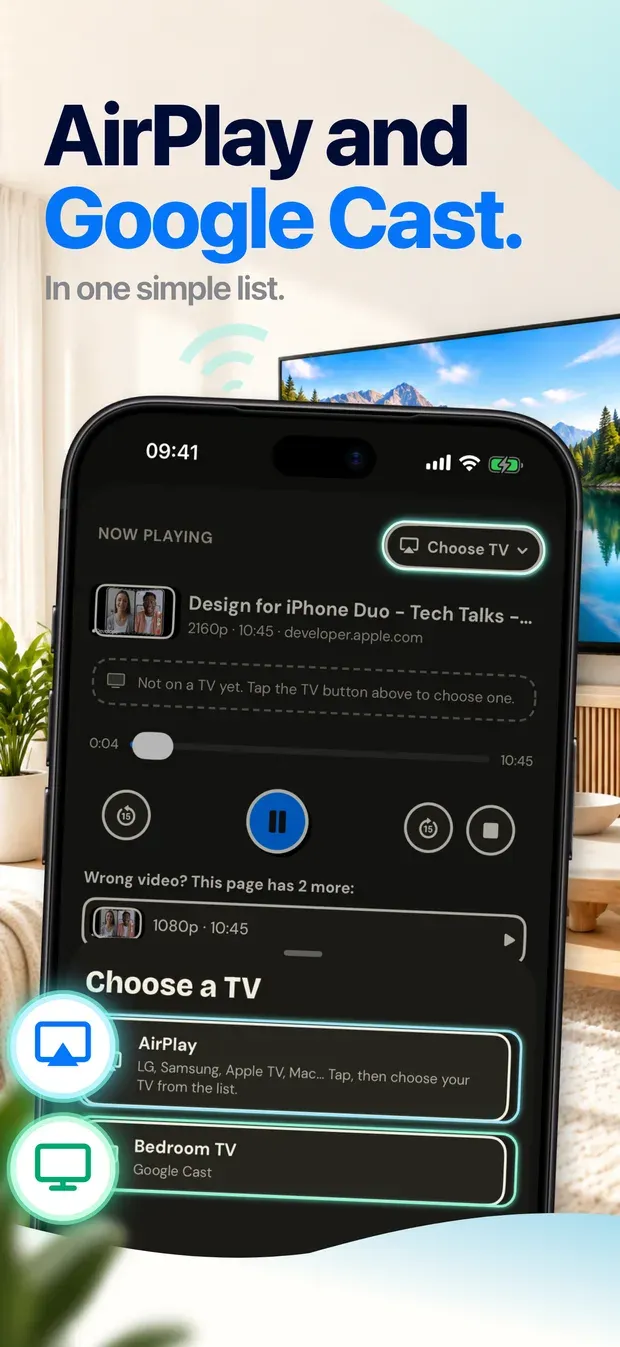
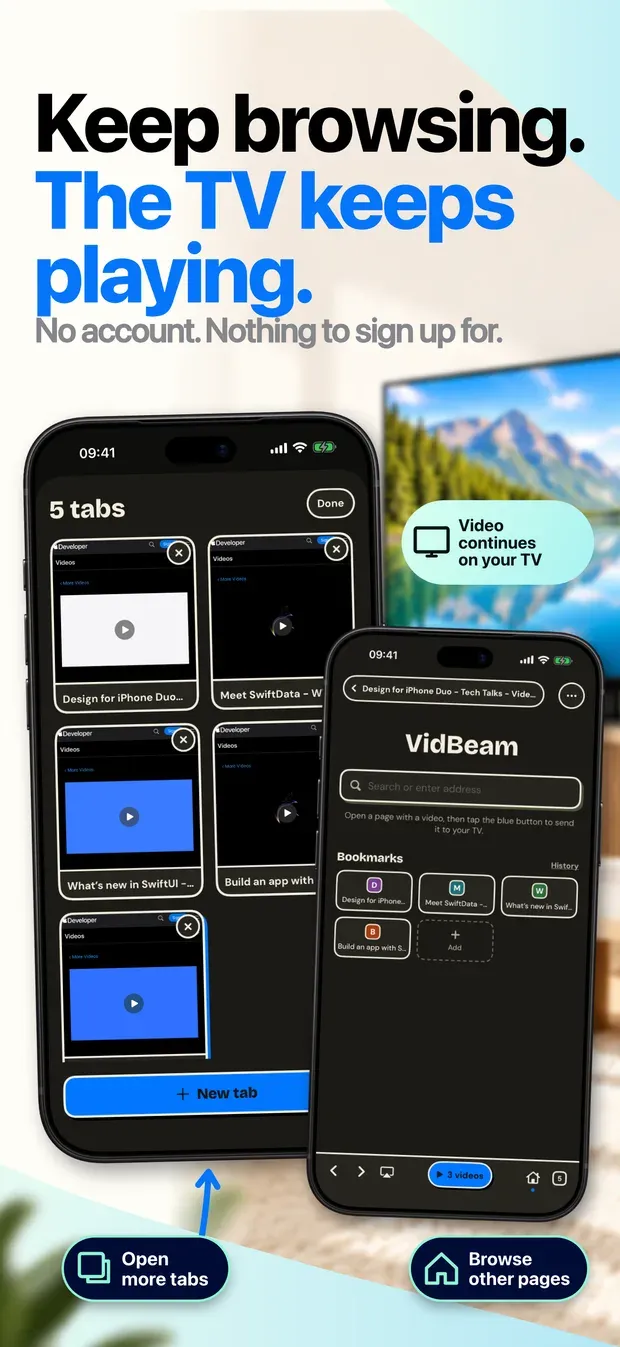
The page in those screenshots is one of Apple’s own developer videos, on developer.apple.com.
Why not just mirror the screen
Mirroring sends the television a live picture of the phone’s display. Three things follow from that, and all three are the point of doing it differently:
- The phone is held hostage. It has to stay on that page, awake, for the length of the match. Answering a message puts the message on the television.
- The picture is a copy of a copy. The phone re-encodes what is on screen and sends that; fast motion is where it shows.
- Everything on the page goes too, including whatever the page has parked around the player.
Handing over the stream instead means the television fetches the video at its own quality, and in most cases the phone is left out of the path entirely.
What it does
A browser, where the first screen is the address bar rather than a welcome tour. When the open page contains a video stream, it is listed; pick one, pick a television — AirPlay or Google Cast, from the same list — and the phone becomes a remote, with the controls also on the Lock Screen, so a two-hour stream survives the screen going dark. If the first guess is the wrong video, the others the page holds are listed under the controls, one tap away.
Playing to a television and reading something else at the same time is the ordinary case, not a trick.
A closer look
01 / 05
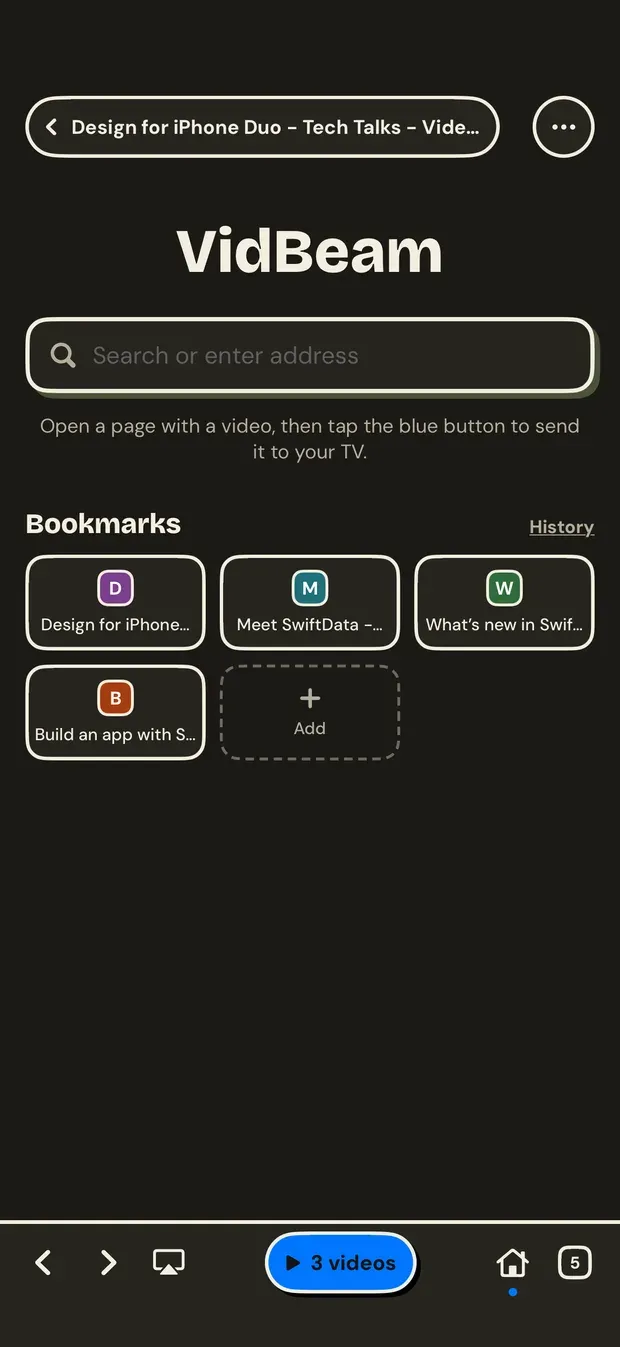
Home
An address bar and your own bookmarks. No suggested sites ship with the app.
02 / 05
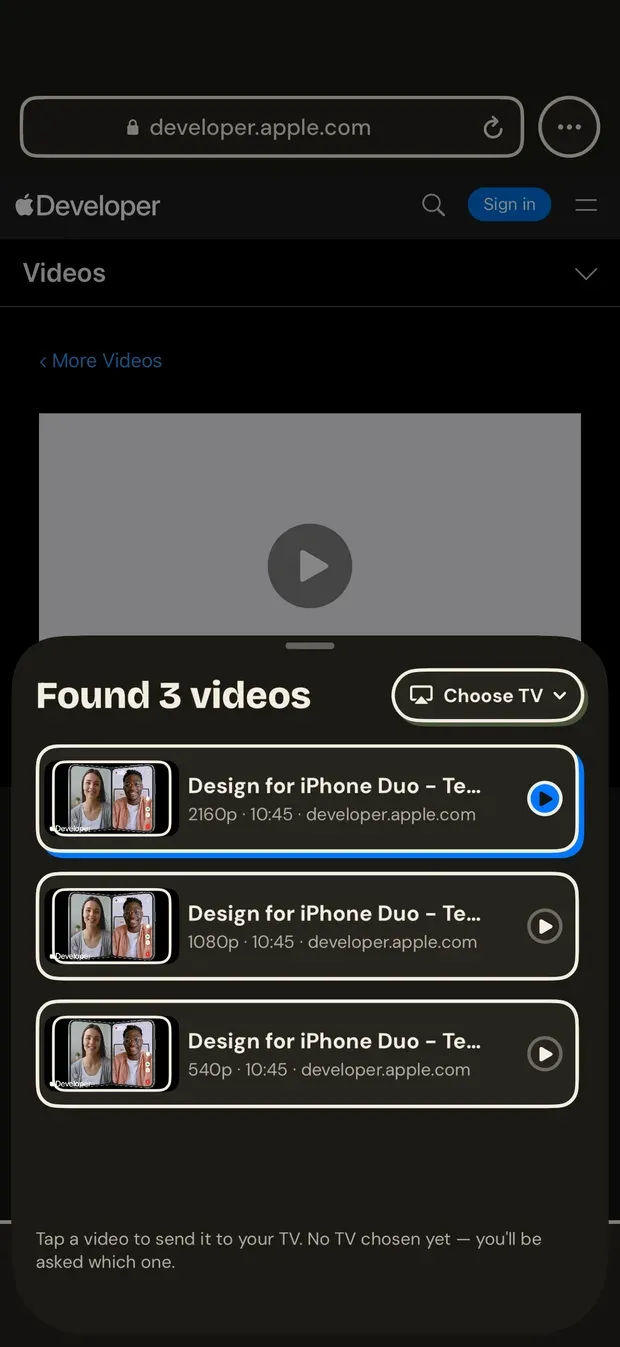
Videos in the page
The streams found behind the page, listed so you can pick one.
03 / 05
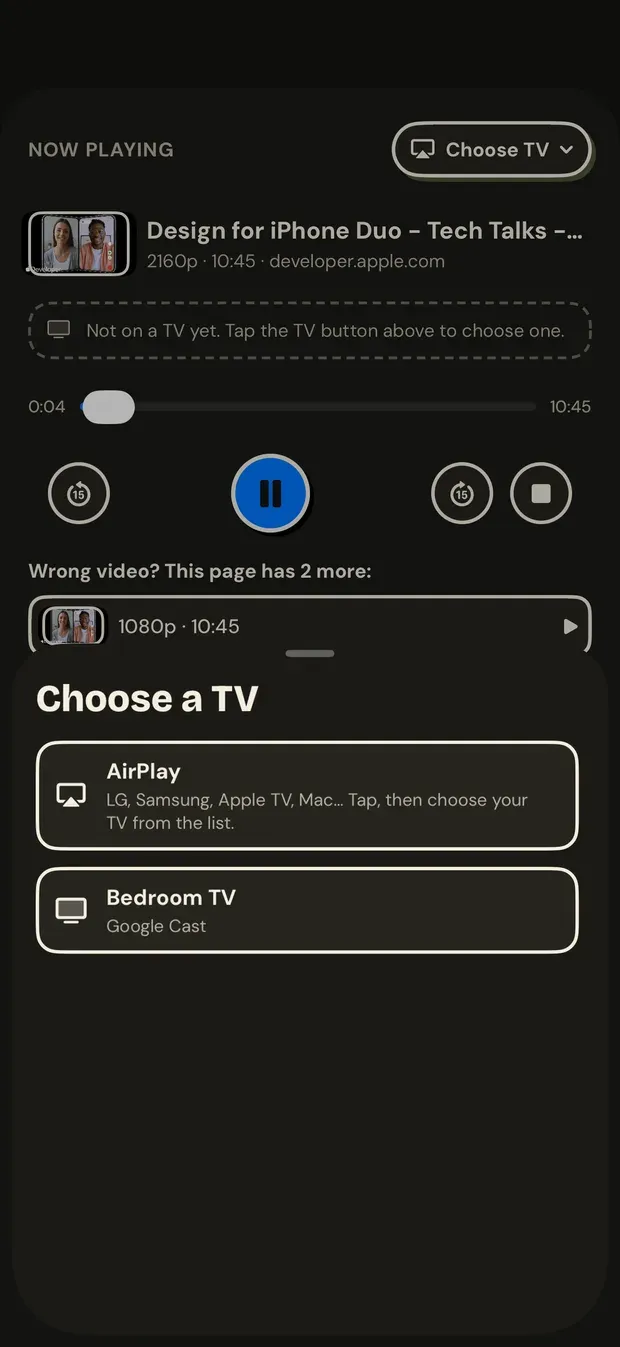
Choose a TV
AirPlay and Google Cast televisions in one list.
04 / 05
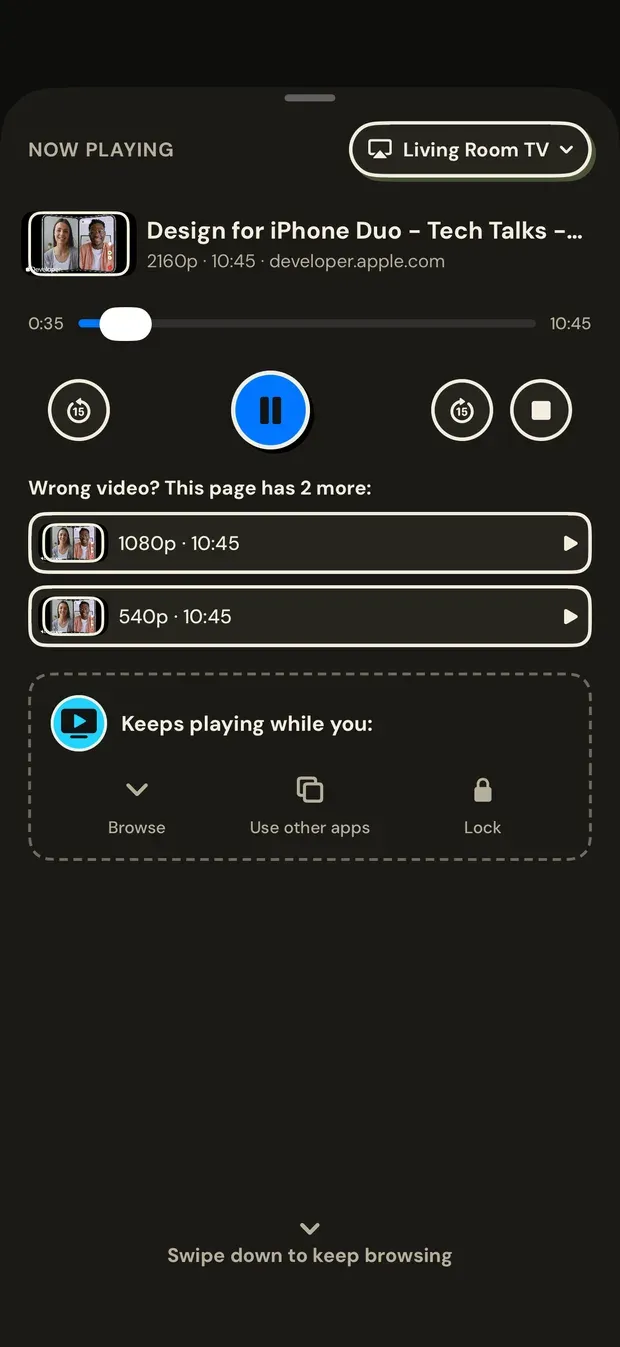
Now playing
Play, pause, skip and stop — also on the Lock Screen. The page’s other versions are one tap away.
05 / 05
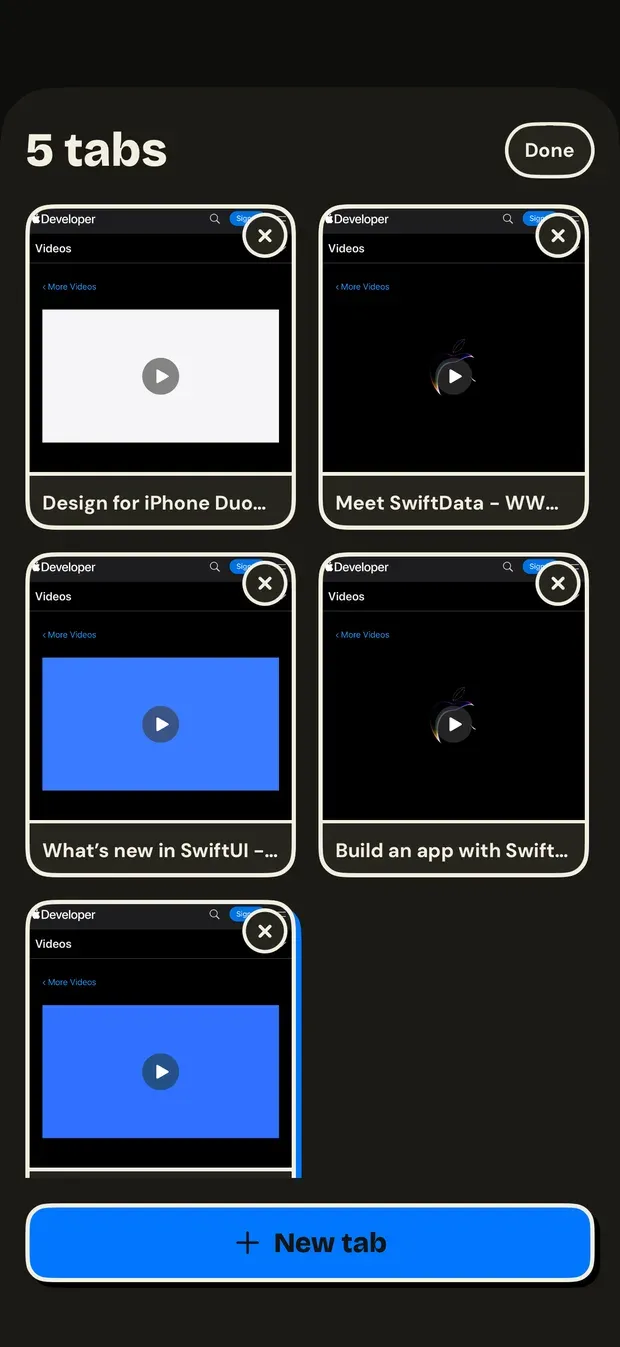
Tabs
Open something else, or close the page you started from. The TV keeps playing.
Honest limits
- AirPlay and Google Cast only. Roku and Fire TV each bring their own protocol and their own failure modes, and are not supported.
- Some streams pass through the phone. When a site or a television will not take the stream directly, VidBeam relays it, so the phone has to stay on the network while the TV plays.
- DRM-protected video cannot be sent anywhere, and the app does not try to get around that.
- Some pages build their video in a way only a browser can play, and those cannot be handed over either.
- The phone and the television have to be on the same Wi-Fi network, which guest networks often prevent.
What this is not
VidBeam is a browser. It is not affiliated with any website, it does not host, provide or decrypt any content, and it has no feature for downloading or saving video. You are responsible for the content you choose to watch.