


For the sessions that run long in a dark room
NoLight: Black Screen Camera
NoLight is an iPhone camera built for the sessions that run long in a dark room — a concert, a lecture, a rehearsal, a two-hour meeting. It keeps recording while the screen goes dark, so the phone does not light up the room around you for the whole session.
A long recording on iPhone tends to fail in the same few ways: the phone heats up, storage or battery runs out, or a call or a stray tap ends it. Why an iPhone stops recording video goes through each, How to record a long video without losing the file covers what to settle before you start, and the guides further down take it topic by topic, with NoLight and without it.
It reached the App Store on 7 September 2026. iPhone only, iOS 17 and later.
Three things the stock camera does not do
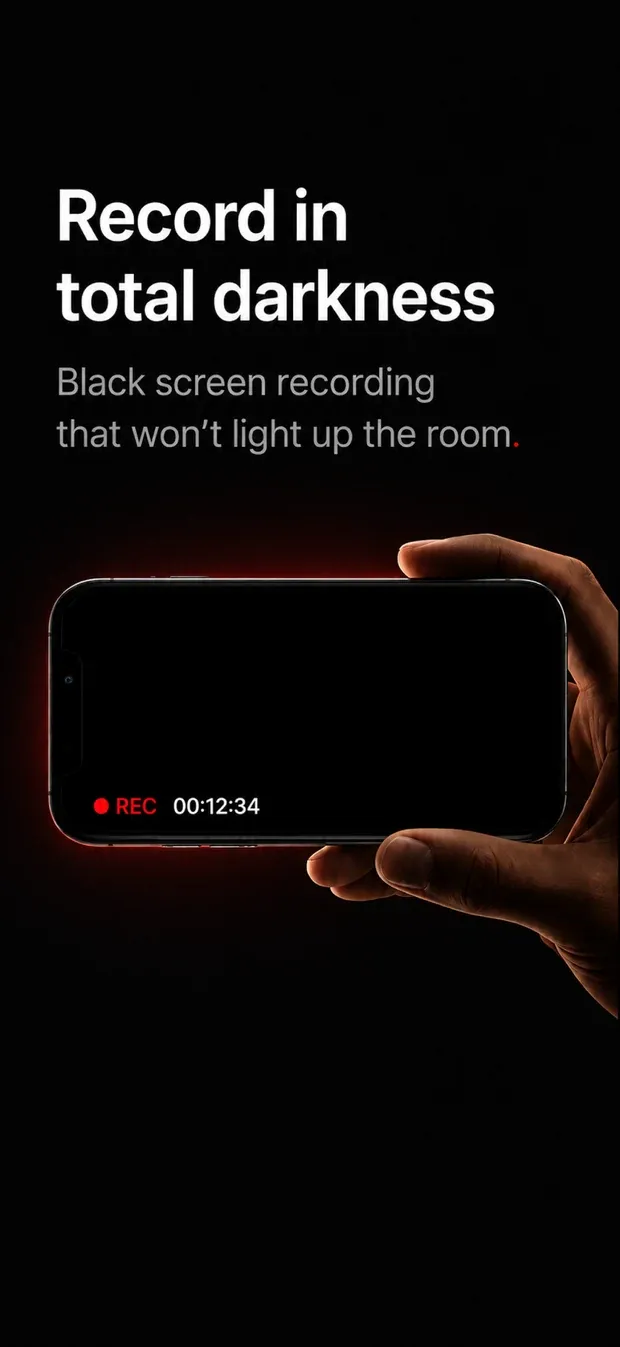
The screen goes dark while the recording continues. Not a screensaver and not a locked phone — the app stays open in the foreground, sets the display to zero brightness and draws a plain dark view. The reason is the whole point: a bright viewfinder held up for ninety minutes lights up the room and everyone sitting near you.
Long recordings survive being interrupted. The video is written in five-second fragments rather than held open as one file until you press stop, so a session that ends badly — a crash, a low-battery shutdown, a force quit — leaves a playable file instead of an unreadable one. On a 135-second test recording, the finished file’s duration was 0.053 seconds off the wall clock.
You can keep using the phone. Workspace puts a web browser, notes and a clock inside the app. Switching between them does not interrupt the recording.
The recording indicator never turns off
Whenever NoLight is recording, an indicator is on screen. There is no setting, no gesture, and no code path anywhere in the app that turns it off.
- Camera tab — a red dot and an elapsed timer over the live camera image.
- Every other tab — a floating recording control with Stop, always on screen.
- While the screen is dark — the word REC, and how to bring the screen back.
That is a requirement of App Store Guideline 2.5.14, and it is also the right behaviour on its own terms: a phone that is recording should look like a phone that is recording.
What it does not do
- No background recording, and nothing while the phone is locked. iOS does not allow it for any third-party app, and NoLight does not try to work around it. There is more on that in Can an iPhone record video with the screen off?
- No interference with the system indicators. iOS draws its own green camera dot, and NoLight leaves it alone.
- No accounts, no server, no analytics. Recordings are saved on your device inside the app. Files leave it only when you choose to export or share them.
Vault
Vault is an optional second space inside the app, unlocked with Face ID or a PIN you choose. Recordings, notes and browsing kept there stay apart from the rest of the app — much like the Hidden album in Photos, or a Face ID–locked folder in Notes. It protects your own material from someone else picking up your unlocked phone, and it changes nothing about how recording is indicated.
Legal and support
Guides to long recordings on iPhone
Keeping a long recording running
What ends a long recording — heat, storage, battery, a call, a stray tap — and how to keep one going.
- How to record a long video on iPhone without losing the fileStorage, heat, battery, interruptions, and the screen — the five things that quietly end a ninety-minute recording, and what to do about each one.
- iPhone overheating during a long video: what to doWhy an iPhone gets hot during long video recordings, what it does when it overheats, and practical ways to keep a long recording going.
- Can you recover a video after a recording app crashed on iPhone?Why a video can become unplayable when an iPhone recording app crashes, what you can still try, and how to avoid losing a long recording next time.
The screen and the rest of the phone
No iPhone app can record with the screen off or in the background. What is possible instead, including a dark screen so the phone won't light up the room.
- How to keep using your iPhone while it records videoiPhone stops recording video when you switch apps. What you can still do mid-recording, and how tools inside the recording app keep it running.
Storage, quality and the finished file
How much space an hour takes, which resolution and format to pick, sound, and moving a large file to a computer.
- How much storage does an hour of iPhone video take?How to work out how much space a long iPhone recording needs at 1080p and 4K, why the numbers vary, and how to measure your own before a long session.
Lectures, concerts and other long sessions
Setups for particular occasions, and what to settle before the day.
- How to record a concert on iPhone without lighting up the roomRecording a whole concert on iPhone without a bright screen bothering the people around you — settings, battery, storage, sound and venue rules.
- Recording a lecture on iPhone: video or audio?When audio is enough for a lecture, when video is worth it, and how to set up an iPhone so a long recording works without disturbing the people around you.
Camera apps for long recordings, compared
The Camera app and the App Store apps that keep the screen dark so it won't light up the room — what each costs and does.
- Black screen camera apps for iPhone: what to check firstA black screen camera app keeps recording while the iPhone screen goes dark, so it won't light up the room. Seven things to check before you pick one.
Recording indicators and asking first
What the iPhone's own recording indicators show, why no app can turn them off, and when to ask before you record.
- How to tell if someone is recording you with an iPhoneWhat the green and orange dots mean, what no app on iPhone can switch off, and how to tell when an iPhone is recording.